
Skyclerk: Import Ledger Entries From CSV
Step-by-step guide to importing past ledger transactions into Skyclerk using a CSV file exported from any accounting system, bank, or spreadsheet.

One of the most useful features in Skyclerk when you are first starting out is the ability to import past ledger transactions via a CSV file. Most accounting systems, banks, and spreadsheets will allow you to export your transactions as a CSV file. Once you have a CSV file it is very easy to import your transactions to Skyclerk.
To import your ledger entries follow the instructions below.
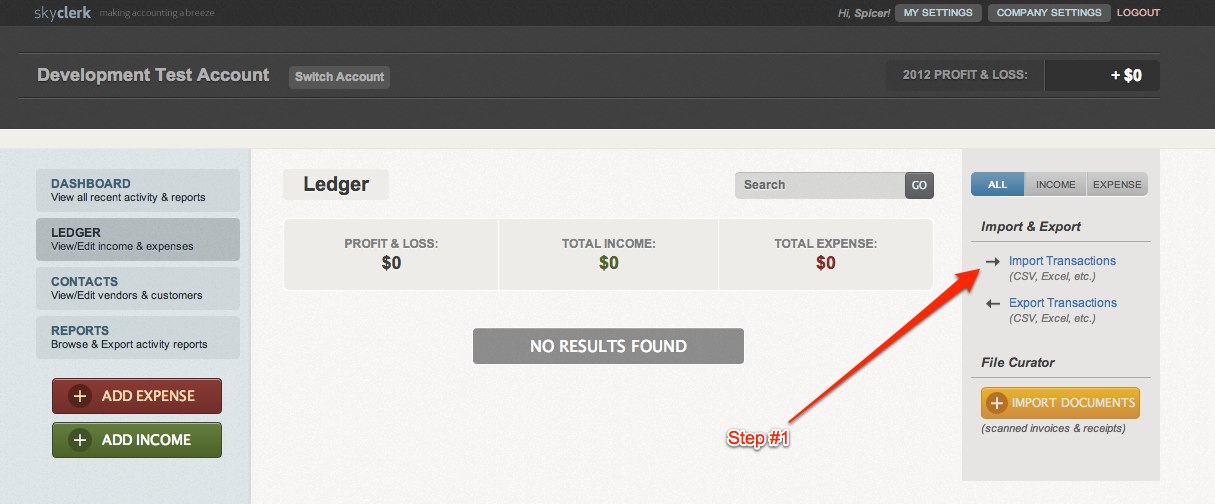
1) Navigate to your Ledger landing page. From this page click on the "Import Transactions" link in the right column.
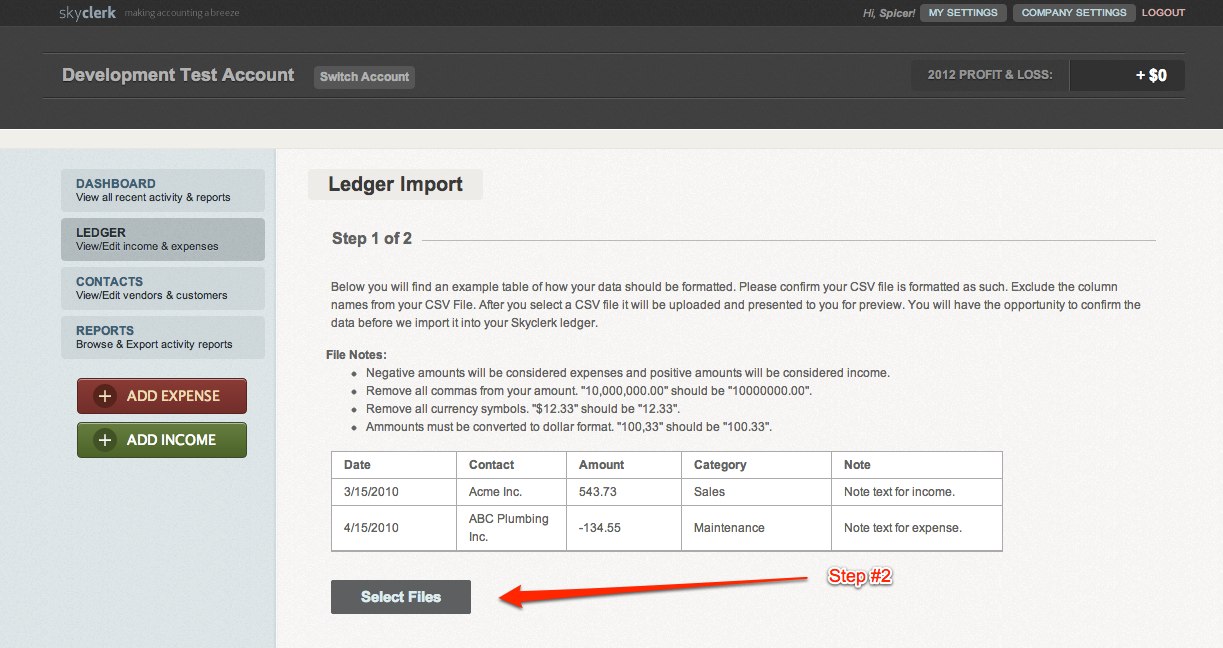
2) Press the "Select Files" button and locate on your computer the CSV file you wish to upload.
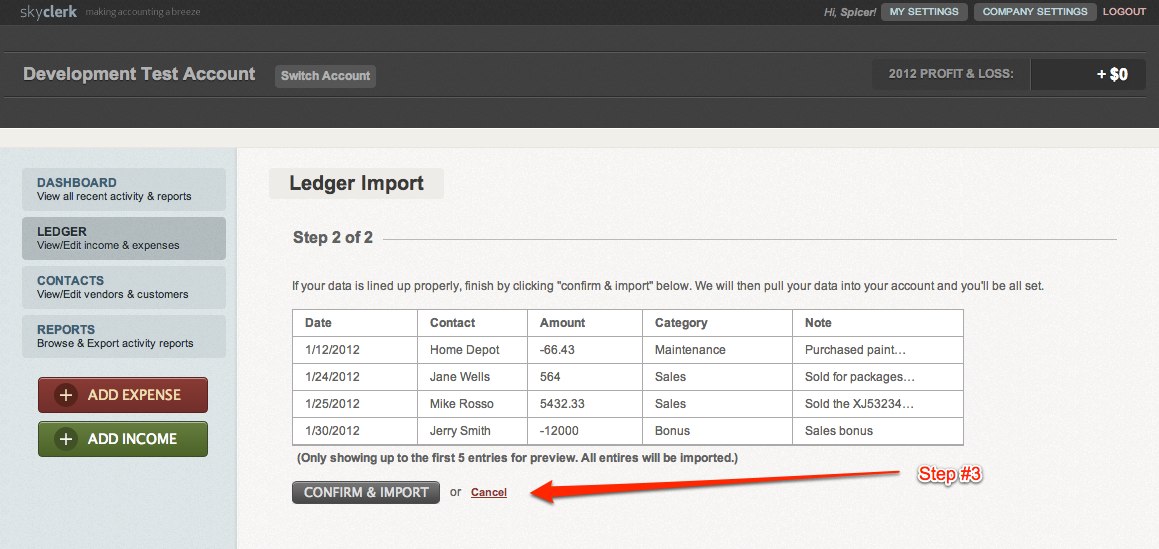
3) Once you have uploaded your CSV file you will be taken to a screen that previews your upload. This screen will just show your first 5 transactions. You want to verify your columns are lining up properly. If everything looks great press "Confirm & Import" and your ledger entries will be imported to your ledger (check this sample CSV file to see how the columns should align with Skyclerk).
A Few Things To Note When Setting Up Your CSV File
- Negative amounts will be considered expenses and positive amounts will be considered income.
- Remove all commas from your amount. "10,000,000.00" should be "10000000.00".
- Remove all currency symbols. "$12.33" should be "12.33".
- Amounts must be converted to dollar format. "100,33" should be "100.33".
All these changes can be made by formatting the column in which the numbers are in the CSV file.
Need More Help?
Check out our tutorial video on importing ledger entries.
Keep reading
All entries →Skyclerk Dives into Video Marketing
Cloudmanic launches its first product marketing video for Skyclerk and shares what they hope to learn about video conversion rates, length, and format.
Read →There Had To Be A Better Way: How Skyclerk Came To Be
How growing up watching a father do books by hand, and years of frustration with QuickBooks, led to building Skyclerk — a faster, simpler bookkeeping tool for small businesses.
Read →